Video and written reviews of various products.
Windows 7 is Out
Author Thomas | 22.10.2009 | Category Software
I thought it was funny that an article stated pre-orders for Windows 7 have surpassed the record for pre-orders of the final Harry Potter book. Lots of people are excited about this release. I have to admit, being a Vista user, I’m excited too. I just hope my programs are compatible on the upgrade.
Update: I purchased the Windows 7 upgrade the day it came out. The upgrade went very well. One tip though, you need to de-authorize your iTunes Account on your Computer (not the audible account, but the computer), or else Apple might think you’ve authorized a new computer when you upgrade.
Android 1.6 Donut Rollout and Features
Author Thomas | 01.10.2009 | Category Electronics, Software
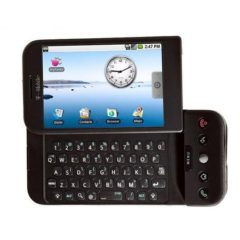
Android, the operating system that powers the G1, MyTouch 3G, and other smart phones is now rolling out. Although the update is in the beginning stages, the roll out seems to be better managed compared to the Cupcake update (delays, delays, and more delays).
This update dubbed 1.6 and inspiring owners of the Android phones to go out and purchase donuts in celebration has a lot going for it, and really helps mature the OS, and especially the Marketplace (App Store) interface.
Although tagged as a “minor” update, there are some pretty awesome features that have been added to the phone.
- Updates to the quick search box
- Camera updates
- The Android Marketplace gets a great face lift
- Virtual Private Network ability
- Indicator for battery usage
- Text-to-speech engine that will blow your mind
More highlights from the Android Dev Page.
T-mobile announcement page.
Google Wave to be Released
Author Thomas | 29.09.2009 | Category Software, Web
Google Wave is set for release tomorrow to 100,000 lucky testers.
Like 100,000 Golden Tickets awaiting to be sent to the lucky winners who will find in their email inboxes tomorrow an invitation to the revolutionary new service/product.
Google Wave will combine in-a-sense, email, instant messaging, blogging, sharing, etc. Email will work much more like a conversation.
A ten minute demo of wave from the developer tool:
From the Developer Conference (the long video):
Hopefully, we’ll all get one of the Golden Ticket invites to start testing, exploring, and enjoying Google Wave.
Legally Download the Newest Version of Microsoft Windows – For Free
Author Thomas | 06.05.2009 | Category Software
Microsoft has released it’s newest version of its operating system Windows, and you can download it for free.
What’s the catch? None really, Microsoft is offering RC version for testing. I downloaded it today and will begin testing soon. The download will be good for one year. After one year, the computer will start to automatically shutdown every two hours as a friendly reminder that it’s time to purchase the real version.
If you’re interested, use the link below to Microsoft’s website to start the download process. You can log in using a free hotmail.com email account to access the download.
http://www.microsoft.com/windows/windows-7/download.aspx
Be aware that the download is very big and comes in the form of an .iso or image file that you’ll need to burn to a DVD.
Also take note that you might not want to install this on your main computer unless you have really good backups as this is the release-before-the-release of the software.
So far, it’s worked great. I have to admit, I’ve used Vista for quite a while now, and I like it (UAC turned off). I’ve downloaded the beta for Windows Movie maker and other Windows Live tools, and we’ll see how those go.
Google Chrome Web Browser in 3D Really Works
Author Thomas | 01.04.2009 | Category Software
Google unveiled a new version of its stellar web browser Google Chrome 3D. The new 3D version lets you view web pages in 3D. Released on April 1st, the browser is obviously part of Google’s April Fools Jokes; however, the browser really does have a 3D setting that lets you view pages in 3D (just don’t print your own glasses. Go get some real ones.
Click on the screenshot below to see Dooba Reviews in 3D. Don’t stare too long without 3D glasses!
The tweak to the browser is a pretty good idea as it will get more people to download and install the browser.
Great Applications for the G1 Android Phone
Author Thomas | 23.03.2009 | Category Software
There are some pretty cool applications for the G1.
ShopSavvy
- An incredible application. It’s so fun to scan items in the store and find them cheaper somewhere else or on Amazon.com.
- If you want to see prices more quickly, turn off the location finder in the application. That way the app doesn’t have to find out where you are and get local prices.
Power Manager
- Great for saving battery power. I highly recommend it. Another great benefit of the Power Manager is that you can easily toggle the Wi-fi, GPS, Cell Location, etc.
- The application has different settings that will take effect on your phone based on the battery level. You can have it automatically turn off the Wi-Fi, etc.
Opera Mini
- This web browser is great for the G1.
- Pages are downloaded much faster because the images on the page aren’t displayed at full quality. On the smaller screen however, they look just fine.
MyTracks
- Just ran this morning using MyTracks. It’s pretty cool, but it took it a second to get a GPS lock on my location.
- The application tracks your position based on GPS and will store the route that you ran on Google Maps (you’ll need to be out in the open for the GPS to get a good lock).
Brain Genius Deluxe
- This application/game is a fun little way to beef up your memory skills.
SkyMap
- This application is great. Go outside at night, point your phone towards the heavens and the application will show the constellations in the sky based on your location/time of year.
- The constellations are mapped out with names.
- This would have been handy when I was working on that constellation merit badge when I was 12!
Here’s a video demo of SkyMap that we found on YouTube. The video is a little blurry, but you get the idea:
I’ve downloaded and tried a number of different applications, but ended up not using them very much and removing a number of other apps that always ran in the background but I never used. How to find out what applications are running in the background, use the System Monitor application – very handy.
All these apps can be found by accessing the Market icon from your android phone.
G1 Android phone with T-mobile – Tips and Tricks for Beginners
Author Thomas | 28.01.2009 | Category Electronics
I put off getting a smart phone for as long as I could until the “real” phone came along with features I had been waiting for. A big fan of Google, I was excited to buy the G1 phone; however, the instructions that came with the phone had only a few steps to getting started, the rest was left to guess work and Internet searches.
Improving Battery Life:
Charging the G1 Battery - There’s lots of talk all over the Internet of how to improve the battery life of the G1 phone with little reference to the source. I’ll take as an authority, the guy at the T-mobile store who had the phone himself and said that when he started using his phone, he saw the battery life wasn’t good, he then let the battery run down to a couple percent and then charged it back up for 3-4 hours. He repeated this step for the next few charges and said his batter life was much, much better. I’ve done that now on my phone and have found the same.
GPS – GPS on the phone will drain the battery quickly, but as you can see, the GPS is only functioning when the GPS icon (looks like a little satellite) is in the top right of the status bar, so don’t be too concerned about that.
Wireless Internet - Most people agree that enabling the wireless uses up the battery more quickly. I’ve found that the Edge network (your data plan connection through T-mobile) isn’t the fastest thing out there, but it works just fine. Faster than dial-up.
Set Sync Times for Email - If you want to save more battery life, don’t have the phone sync every 5 minutes. You can turn off Auto-sync at Home > MENU > Settings > Data synchronization > Auto-sync. For what it’s worth, I leave mine on auto-sync. If you use the Email application (for other accounts than your Google Gmail Account for example), you can set the check rate by opening the Email Application (from your application lists) > MENU > Account Settings >Email check frequency. You can set for 5, 10, 15, 30, 60 minutes.
Adjust your screen brightness – From Home, press MENU > Settings > Sound & display > Brightness (you’ll need to scroll down to see it).
Fair Compare – Comparing battery life to your previous phone probably isn’t fair because you were used to your old phone, the features, etc., and it was probably pretty boring, now you have a new phone and want to play with the features all day long, of course the battery is going to run out more quickly. After you’re done using the phone every second of the day, you’ll see the batter lasts much longer.
Password Protection:
The guy at the T-mobile store had this on his phone, and I thought it was pretty neat. The password is a Connect-the-Dots type of password to open your phone (great for keeping kids or coworkers from playing with your phone and running the battery down).
From the Home Screen (you get here by pressing the button that has a house on it), press Menu > Settings > Security & location >Screen unlock pattern
Set your pattern here to enable a password. You can come back and disable/change the password if you want to turn the feature off.
You can still answer incoming calls without having to use the password which is nice.
Activating the G1 Phone:
“Can’t activate/connect” error - If you’re activating your phone for the first time and are enabling the data plan for the first time, the guy at the T-mobile store said it takes about 20 minutes for the data plan (which is needed for the phone to work) to activate. Mine took about 30 minutes before the phone would let me pass the activation screen with my Google account credentials.
Contacts – Importing and Using Contacts on G1
Auto Sync of Contacts - Contacts from your Google Account will be imported right to your phone’s listing of contacts and will continue to be updated as you sync your phone with your Google account. This feature is fantastic because you can easily add/delete contacts from Google and have the updates transferred to your phone. Old phones required that you sync to your computer or Outlook. What a mess!
Adding Pictures – Within you Gmail Account (use your computer and visit https://mail.google.com to get there), you can add pictures to your contact profiles. Upload them from your computer, or use a link from the web if you use Picasa Web Albums, you can view your albums and add pictures easily. You can also paste a URL address to a picture on another website. Click on the Contacts link on the left-hand side of your Gmail account. You’ll then be at the contacts page where you can add/change contact info.
Importing contacts from your SIM Card – For some reason, I don’t think this happened automatically on my phone. From the Home Screen, Click on the Contacts Application then Press MENU > Settings > SIM contacts importer to access the import feature.
You’ll probably have some duplicates as I did having some one’s phone number in my SIM card and email in my Google Contacts. Let you phone sync with Google, and then modify your new contacts as necessary in your Gmail account. Note, if you didn’t use a Gmail account prior to getting the Google Phone, the phone has you set one up when activated for the first time. You can export contacts from Outlook or other mail programs and import them into Gmail quite easily.
Contacts – Sending Text Messages, Editing, etc.
Sending Text Messages – When within your contacts program, press and hold on a contact’s name, you’ll then have the option to:
- View contact
- call Mobile
- Send SMS/MMS
- Add to favorites
- Edit contact
- Delete contact
Press the Back Arrow Button if you don’t want to use those actions at that time.
Sending Text Messages to Multiple People at the Same Time – This one took a little research, but it makes sense now. Click on the Messaging Application, Press New Message. In the To field, start typing the name of the first contact, and a list will appear of matching names. Press the contact you want to include, and start typing the name of the second person you want to add to the text message and so forth.
Android Marketplace – Getting New Applications for Android
Download Free Applications for your Android Phone - Just like the App Store by Apple, you can download free (and at some point paid-for) applications for your G1. One of the best is called ShopSavvy that helps you compare product prices just by scanning a bar code using the G1’s camera. It’s a great feature, you’re in the store, you see a product you like, flip it over and scan the UPC bar code, in seconds you can see if the product is cheaper somewhere else nearby (remember the G1 has GPS) or pricing on the Internet such as Amazon.com.
Access the Android Market by accessing your application list and pressing the icon entitled Market. You can then download and install. Install apps with a little bit of caution, research them a little bit so you don’t get an application that doesn’t work well or worse, causes problems for you phone.
The guy at the T-mobile store (don’t you love that title?) said that the applications are available for free right now, but sometime (perhaps mid to late 2009) the applications will require a fee just like many of the Apple “App Store” applications for the iPhone and iPod Touch.
The Status Bar – Best Tool Ever
Status Bar Features – Well, maybe not the “best tool ever,” but it does come in handy compared to my old phone. The bar is located at the very top of the screen. The status bar will let you know what services are running (GPS, Wifi, Edge, 3G, Bluetooth, etc.) in the right corner.
The left corner (also called the “Window Shade”) shows notifications that the phone has for you. For example, icons representing new Gmail, Email, Text Messages, voicemail, missed calls, and calendar events will appear. Simply touch and pull down the status bar to see notifications. You can dismiss notification, link directly to emails, call people back from missed calls; it’s great. Slide the notification bar back up from the bottom to get back to the screen you were viewing previously.
Keeping Up-to-Date
You might want to subscribe to the Android Community Feed at http://androidcommunity.com/feed/ to get the latest info on what’s happening and what’s coming up. Another good resource is the Google Android website at http://www.android.com
Fun Tips and Tricks – Hands On Video Demos of the G1 Android Phone from the Developers
Saving Stuff from the Internet – Save pictures and Mp3’s directly from the web to your android phone.
Using the Map Application to view Traffic Conditions
Using the Window Shade to see New emails, Text messages, calendar events
Customizing the Home Page and Searching for Applications
Keyboard shortcuts on the G1 Android - There are some pretty cool keyboard shortcuts that let you switch between applications on the G1.
Shortcuts you can use when currently viewing one application and you want to switch to another:
Switch to shortcuts (hold down the magnifying glass button (the search button) and then press the letter short cut at the same time:
Search + B = Browser
Search + C = Contacts
Search + E = Email
Search + G = Gmail
Search + I = Instant Message
Search + L = Calendar
Search + M = Maps
Search + P = Player (media player)
Search + S = Test Messaging
Search + Y = YouTube
G1 Accessories to get Started
Screen Protection - I recommend the
Invisibleshield T-mobile G1 screen protector by Invisible Sheild for the Google Screen. I’ve tried other screen protectors, and it works the best. I don’t think the whole phone needs the Invisible Shield on it, just the screen, but that’s a matter of preference.
Also came across this rubber case for under $2. Not bad.
Update 4/4/2009 – I can’t believe I forgot this! The below video got a lot of people excited about the G1 before it launched. I had forgotten about it, and just tested out the Street View on Google Maps. It’s awesome! Now if you’re looking at the location you’re already at, no big deal, but saw you’re going into town and want to know what side of the street something is on or to double check the accuracy of the map/destination location, use Google Street View on you G1.
Stay Connected with Family Through Skype
Author Thomas | 21.04.2008 | Category Freebies, Software
Ever want to talk to a friend that was on a trip far, far away or reach out to a family member that lived “over the mountain and through the woods” but found the long distance costs too high?
You’re not alone. Even with the ubiquity of cell phones, it can still cost a lot to make long distance or international phone calls (especially if you’re over your cell phone minutes).
There is, however, a way to make long distance calls for free, and even make international calls for free. It’s done through a service called Skype (which is owned by eBay in case you were wondering).
Skype is a free software program that can run on a Mac or a Windows computer that enables you to talk to someone else that has the program anywhere in the world (providing they have an internet connection). It all takes place over the Internet for free.
Use Skype to not only talk but to enjoy video conferences as well. I had a family member travel to Asia and we could see and talk to each other using Skype. It was great and easy to use.
You simply download and install Skype for free and then add your friend or family member to your contact list and you’re set. Simply double-click on your contact’s name and their computer will start “ringing” just like a phone. Your friend has the option to answer or pickup the call or not.

You and the person on the other end will need at least a microphone and speakers to be able to talk to each other. Using a webcam, you can see and talk to each other.
Skype also lets you make long distance calls from your computer to a real phone number for a small fee, and most often, much less than regular long distance fees. You can even buy a Skype-enabled phone to plug into your computer.
Audacity Sound Recording and mp3 Recording Software
Author Thomas | 14.04.2008 | Category Freebies, Software
Ever have the need to record and edit a little audio? Perhaps you’re working on an audio book recording, music recording, or audio splicing project that requires a little more power than Sound Recorder but doesn’t warrant purchasing expensive software.
Audacity is the free alternative, and for being free, has a lot of great uses. The program allows you to record and edit multiple tracks. Play your record backward just for kicks, or really get into the editing by adding echoes, changing of pitch, tempo, and much more.
I recently purchased and read a great book but I wanted to have the book on mp3. The only problem is that audio books tend to be fairly expensive, and I already spent money on the book. We’ll with audacity, I’m making a recording of myself reading the book. I can stop recording at any time, and then pickup where I left off and continue recording. Reading the book again out-loud is fun because I enjoy the book.
The recording is just for myself, but like many people, I find it very weird to listen to a recording of my own voice. With Audacity I can change the pitch of my voice without speeding up or slowing down the audio.
To do this simply highlight the audio segment you wish to change, select Effect from the top menu, and then select Change Pitch.
By doing this, I can listen to the recording I made as if it were read by the guy that does the announcements on movie trailers (well pretty close anyway).
The interface is pretty easy to use. A big record button and stop button make it easy to use. For the price, it’s a pretty good little value.
Remote Desktop Presentations
Author Thomas | 08.04.2008 | Category Freebies, Software, Web
Recently, we highlighted Logmein which allows a user to remotely control his or her Mac or PC from another Mac or PC. However, to do so, the a user name and password for the remote computer must be provided.
To share the desktop only, say for an online presentation or online meeting, there are a couple great options out there that will let you share your desktop screen for free.
SharedView by Microsoft is a great, lightweight little tool that gets the job done. You can use the tool to share your entire desktop, or just one application (e.g. Powerpoint or a web browser) at a time.
Installation and Getting Started - To initiate a session, you need to download and install the software, and log in using a Microsoft Passport (Live/Hotmail) account.
Security – According SharedView, the connections are encrypted.
Collaboration – You can allow the other participants to have mouse pointers on your shared screen and will be identified with their names on the mouse.
Easy to use – The application is very easy to use especially compared to some of the solutions out there that have too many confusing features. If you want something quick and simple, SharedView is the way to go.

The software is easy to use and has an added feature of being able to preview what others are seeing. When you initiate are sharing session, the window (highlighted above) provides login information that you can email or share with others that you want to participate.
Popular Selection
Visitor Recommended
Categories
Recent Posts
- Fix for Nikon D60 Flash not Working (Video)
- Who Knew? Discount on your monthly T-mobile bill with AAA!
- New Version of Google Chrome – Supports Bookmark Sync and Extensions
- Taveling this Holiday Season? Keep track of your Passport and Tickets.
- Deals Listing for Black Friday and Other Holiday Deals
- Google Navigation Available on the G1
- New LLG iPod Touch Protective Case
- Google Maps Navigation will Change the Way We Drive Forever
- Windows 7 is Out
- Just Received Access to Google Wave – First Impressions