Video and written reviews of various products.

Google Navigation Available on the G1

Author Thomas | 23.11.2009 | Category Uncategorized

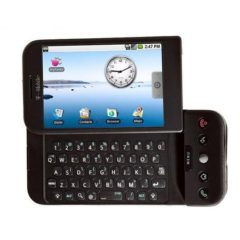
Well, it’s almost the update we’ve been waiting for…Google Navigation on the G1.  We’ve been hoping for Android 2.0, but hey, Navigation has been the major Wow Factor, and we’ve wanted it.

Visit the Marketplace and download the update to Google Maps.  When requesting directions through Google Maps on your Android phone, simply click Navigation and Whammo!  GPS navigation just like the big boys but for free.

You can also navigate through your phone, check emails, etc. and even have the display turned off and the phone will still speak the directions to you.  Your phone may ask you to install the text to speech engine, but the steps are easy, just press “Install.”

Google Maps Navigation will Change the Way We Drive Forever

Author Thomas | 29.10.2009 | Category Freebies, Software

Talk about Totally Awesome! Google Maps Navigation just changed the whole game for GPS navigation. Garmin’s shares fell by 16.4%; TomTom’s by 20.8% when Google announce their new FREE GPS that is light years ahead of any existing GPS device.

Some of the coolest features are:

Voice Search
View your route by Satellite
View your route by Street View
  • Voice Search
  • View your route by Satellite
  • View your route by Street View
  • Real time updates (maps are current)
  • Find businesses, restaurants, with Google Powered search

If you’ve ever tried to use a regular GPS, it takes a long time to try to type in your destination, with The Google Navigator, you just say it.

I have to say that the Satellite and Street Views are awesome.  You’ll be able to see exactly where you are.

The Navigator works on Android 2.0 devices.  Let’s hope 2.0 rolls out to the rest of us in the very near future, because I need this app!

Android 1.6 Donut Rollout and Features

Author Thomas | 01.10.2009 | Category Electronics, Software

Android, the operating system that powers the G1, MyTouch 3G, and other smart phones is now rolling out.  Although the update is in the beginning stages, the roll out seems to be better managed compared to the Cupcake update (delays, delays, and more delays).

This update dubbed 1.6 and inspiring owners of the Android phones to go out and purchase donuts in celebration has a lot going for it, and really helps mature the OS, and especially the Marketplace (App Store) interface.

Although tagged as a “minor” update, there are some pretty awesome features that have been added to the phone.

  • Updates to the quick search box
  • Camera updates
  • The Android Marketplace gets a great face lift
  • Virtual Private Network ability
  • Indicator for battery usage
  • Text-to-speech engine that will blow your mind

More highlights from the Android Dev Page.

T-mobile announcement page.

Google Voice App for Android and Blackberry Phones

Author Thomas | 30.07.2009 | Category Software, Web

There’s been a Google Voice app for the Android phone for a while now, but recently, Google released an update that makes it even more useful.

Long press on your Android home screen and select Shortcuts and then select Toggle Google Voice (this is assuming that you have the Google Voice App Installed). You can now Toggle the following options on Google Voice when you press the shortcut:

  1. Use Google Voice for all calls
  2. Only use Google Voice for international calls
  3. Do not use Google Voice for any calls
  4. Ask to use Google Voice for each call

The Ask to use Google Voice for each call option brings up a little dialog when placing a call which lets you select to use your Google Voice telephone number or your regular telephone number for the call.  This is helpful if you’re calling mobile-to-mobile with somone on the same carrier allowing you to save on minutes.

Google Voice Starts Sending Invitations

Author Thomas | 15.07.2009 | Category Freebies, Web

Well I just received the invite that I’ve been waiting for to enable Google Voice.  If you’re not familiar with Google Voice, the following short animation will surly help and most likely peak your interest:

In a nutshell, here’s what Google Voice can do (given to me in my first voicemail from Google):

Welcome to Google Voice! Google Voice gives you a single phone number that rings all your phones, saves your voicemail online, and transcribes your voicemail to text. Other cool features include the ability to listen in on messages while they are being left and the ability to make low cost international calls. To start enjoying Google Voice, just give out your Google Voice number. You can record custom greetings for your favorite callers or block annoying callers by marking them as SPAM. Just click on the settings link at the top of your inbox. We hope you enjoy Google Voice.

Having a transcribed voicemail is awesome!  How many times do callers leave very long messages and you listen all the way through to make sure you don’t miss something?

googlevoice

A few notes and tips right off the bat as you start using Google Voice:

  1. Choosing your number on Google Voice – I put in my area code and tried all sorts of word combinations to come up with a cool number, but none were available.  I then started to wonder if my area code was even open.  It took a little bit of searching online for a list of area codes that Google Voice accepts only to not find the list!  However, all was not lost.  I saw on the Google Voice help page that you can type in your area code AND/OR a number or letter combination.  If you type only the area code, you’ll get the list of numbers available.  I did that, and snatched up a number.
  2. Setting up voice mail – Have your phone ready when you click add a phone because Google wants to place an automated call to verify your phone you’re using.  Once you’ve done that, you can set up your voice mail.  The connection quality didn’t seem all that great.  We’ll see if it was the connection or the service as I use it more.
  3. Next Steps: Configuration - You’ll next want to visit the settings option once logged in to set the “Do not disturb” function, call screening, add phones, etc.  You’ll most likely stick with the defaults at first, but it’s good to know.

Notifications – I turned off the option to send a text message when I receive a new voicemail. Email is enough for me since I receive email on my phone anyway.

Call Screening – If you enable this option, callers that are not in your contact list will be required to state their name during their first call.

Call Presentation - If you turn off this options, calls can be answered by you without the “Press 1 to accept option”

If you leave the “Call Presentation” option turned on, you can do the following while an incoming call is ringing (an you pick up):

Press 1 - Will accept the call
Press 2 – Will send the call to voicemail
Press 3 - Will let you listen to the voicemail (if the caller leaves one) as it is being left
Press 4Allows you to accept the call but also record the call contents

Other basic options:

Want to change your Google Voice Number? Just go to Settings > Phones > and click the “Change” link next to your number.

Want to have different voicemail greetings depending on who called? Go to Settings > Groups

Want to change which calls get forward to which phones? Go to Settings > Groups

Below are more Google Voice videos for your viewing pleasure:

Google Voice Mobile.  You can install the Google Voice App on your Android Phone (or BlackBerry) which will give you the option to have all outgoing calls show to the receiver as your new Google Voice Number.  I installed the app and tested it out.  Works great.

Google Voice Conference Calling (how to)

The spam filter is great, but one of the best features is the ability to access voicemail on the web.

Bytheway, the service is free for calls in the continental US.  If you want to make an international call, check the rates.

It’s 2 cents/minute to call your buddies in France or the United Kingdom (if you’re calling a cell phone over there though, it’s a little more, so check first). If you want to go the other way way, calls to China are 2 cents/minute.

The service is a great idea for people in the workforce with multiple phones as well as a line of defense against unwanted calls.

You don’t have to deposit money to start using the free service, because, hey, it’s free.  In fact, my account started with 10 cents already in it.  That means I could call China for 5 minutes courtesy of Google Voice.  The great rate for international calls will make holding a skype phone connected to your computer not look so good.

InvisibleShield for Android G1 a Great Addition

Author Thomas | 30.06.2009 | Category Accessories

Well, I finally shelled out the money for a screen protector for my G1 Android phone.  I have to admit that I had left the original plastic screen protector in place that came with the phone for months before purchasing the Invisibleshield for the T-mobile G1.

A few notes about the shield:

  • Go for just the screen protector because the phone’s back and sides are fine on their own
  • Make sure to really clean off any dust before applying the shield
  • Let your phone sit while turned off for at least 12 hours for the solution to dry
  • Fill out the warranty information and email them a copy of your purchase receipt to qualify for the lifetime warranty

I now feel that the phone is more safe when it’s outside of its case.  The Invisibleshield really does prevent scratches.  It’s pretty amazing.  It’s also different from the other brands of screen protectors.  You get what you pay for.

This is the droid, the Android, you’re looking for: Android 1.5 Cupcake Released

Author Thomas | 23.05.2009 | Category Software

androidDoes anyone remember a certain android watching a tea kettle steam/boil and commenting to his friend that he’s just myth-busted the idea that if you watch the kettle, it takes longer to whistle? His friend suggested that he turn off his internal clock, and at the whistle, he gave a quizzical look to the kettle.

Any takers? Well if not, search for the episode. Needless to say there have been many humans watching their Android and waiting for the update to 1.5.

Has watching and checking the phone every minute made the the weeks/months go by more slowly. Well, that’s all in the past for some, and soon to be for everyone (until donut comes out).

Android 1.5 aka “Cupcake” is finally out. The roll-out has started, and the T-mobile user forum has the manual link you can use if you choose to manually update your phone (does not require that you root your phone).

I got as far as putting the update.zip on my SD card, and then…I decided I would wait for the Over the Air (OTA) update to be pushed to my phone.  For the following reasons:

  1. Visiting the link in Google Chrome provided a hefty security warning dealing with the certificate and URL destination
  2. I didn’t want to go until the next update wondering if I just created a security problem on my phone (due to reason #1)
  3. In conversation yesterday, referring to credit, I mentioned that things are more expensive to those who can’t wait (I didn’t want that statement to haunt me if I bricked or otherwise compromised the security of my phone just because I couldn’t wait ’til Monday…let’s hope I get it then).
  4. Waiting provides an excellent lesson in patience for me.  If you’ve ever read Zen in the Martial Arts (a really good, short book bytheway), you’ll know it’s kind of “kung-fu-ie-and-all” (Kung Fu Panda) to master the anticipation and enjoy fully the excitement, when it is time.

Well, we’ve all felt it’s about time, but a little Zen practice will only help.  So yes, update.zip is sitting on my desktop now, but it is not on my phone, and I will wait for the OTA to upgrade.

For those who have received the update, here’s from the official Android.com page about some of the new features:

Update: 5/29/2009

I received cupcake this morning through the Over The Air (OTA) delivery at 1AM!

Android 1.5 Cupcake Update

The link to the T-mobile Android Forums below provides a great list of the new features in Android 1.5:

http://forums.t-mobile.com/tmbl/board/message?board.id=Android_MR&thread.id=3

Google Skymap for Android Based Phones

Author Thomas | 12.05.2009 | Category Uncategorized

When I found SkyMap, I thought it was the coolest thing. The only problem was that the week that I downloaded and installed the app (for free), it was overcast and precipitating. The application makes use of the compass, GPS, date and time, and phone oreintation.

Below is a video from Google about SkyMap.

I didn’t know until I saw the video that the application came from Google. An absolutely brilliant application and one more reason to get an Android based phone such as the G1 with T-mobile. Soon, other phones will be released with the Android operating system installed so stay tuned.

New Gmail, Google Calendar, and Google Docs for Android and iPhone

Author Thomas | 07.04.2009 | Category Software

Of course there are applications that you can use on your mobile phone to check your Gmail, but why enter all those settings, when you can point your mobile web browser to gmail.com and get the whole kit-n-kaboodle.

The new version of Gmail for mobile devices is much improved. It works on Android, iPhone, and probably other mobile devices. The difference in this version is that Google Gears is employed to help make checking email much faster and offer the ability to perform tasks even when off line.

The new web app offers quick links at the top for Gmail, Calendar, Docs, and “more.”

Gmail in this new version lets you see conversations more easily and allows for bulk edits. The follow bar is interesting when you open a conversation to read.

Google Docs looks great in the new version. The display icons add a lot to the design.

An improvement that could be made (on Android) is to make the links that you click behave more like buttons rather than hyperlinks that receive the standard link box around them when activated or highlighted.

Below is a demo of the new features.

Great Applications for the G1 Android Phone

Author Thomas | 23.03.2009 | Category Software

androidThere are some pretty cool applications for the G1.

ShopSavvy

  • An incredible application.  It’s so fun to scan items in the store and find them cheaper somewhere else or on Amazon.com.
  • If you want to see prices more quickly, turn off the location finder in the application.  That way the app doesn’t have to find out where you are and get local prices.

Power Manager

  • Great for saving battery power.  I highly recommend it.  Another great benefit of the Power Manager is that you can easily toggle the Wi-fi, GPS, Cell Location, etc.
  • The application has different settings that will take effect on your phone based on the battery level.  You can have it automatically turn off the Wi-Fi, etc.

Opera Mini

  • This web browser is great for the G1.
  • Pages are downloaded much faster because the images on the page aren’t displayed at full quality.  On the smaller screen however, they look just fine.

MyTracks

  • Just ran this morning using MyTracks.  It’s pretty cool, but it took it a second to get a GPS lock on my location.
  • The application tracks your position based on GPS and will store the route that you ran on Google Maps (you’ll need to be out in the open for the GPS to get a good lock).

Brain Genius Deluxe

  • This application/game is a fun little way to beef up your memory skills.

SkyMap

  • This application is great.  Go outside at night, point your phone towards the heavens and the application will show the constellations in the sky based on your location/time of year.
  • The constellations are mapped out with names.
  • This would have been handy when I was working on that constellation merit badge when I was 12!

Here’s a video demo of SkyMap that we found on YouTube.  The video is a little blurry, but you get the idea:

I’ve downloaded and tried a number of different applications, but ended up not using them very much and removing a number of other apps that always ran in the background but I never used.  How to find out what applications are running in the background, use the System Monitor application – very handy.

All these apps can be found by accessing the Market icon from your android phone.